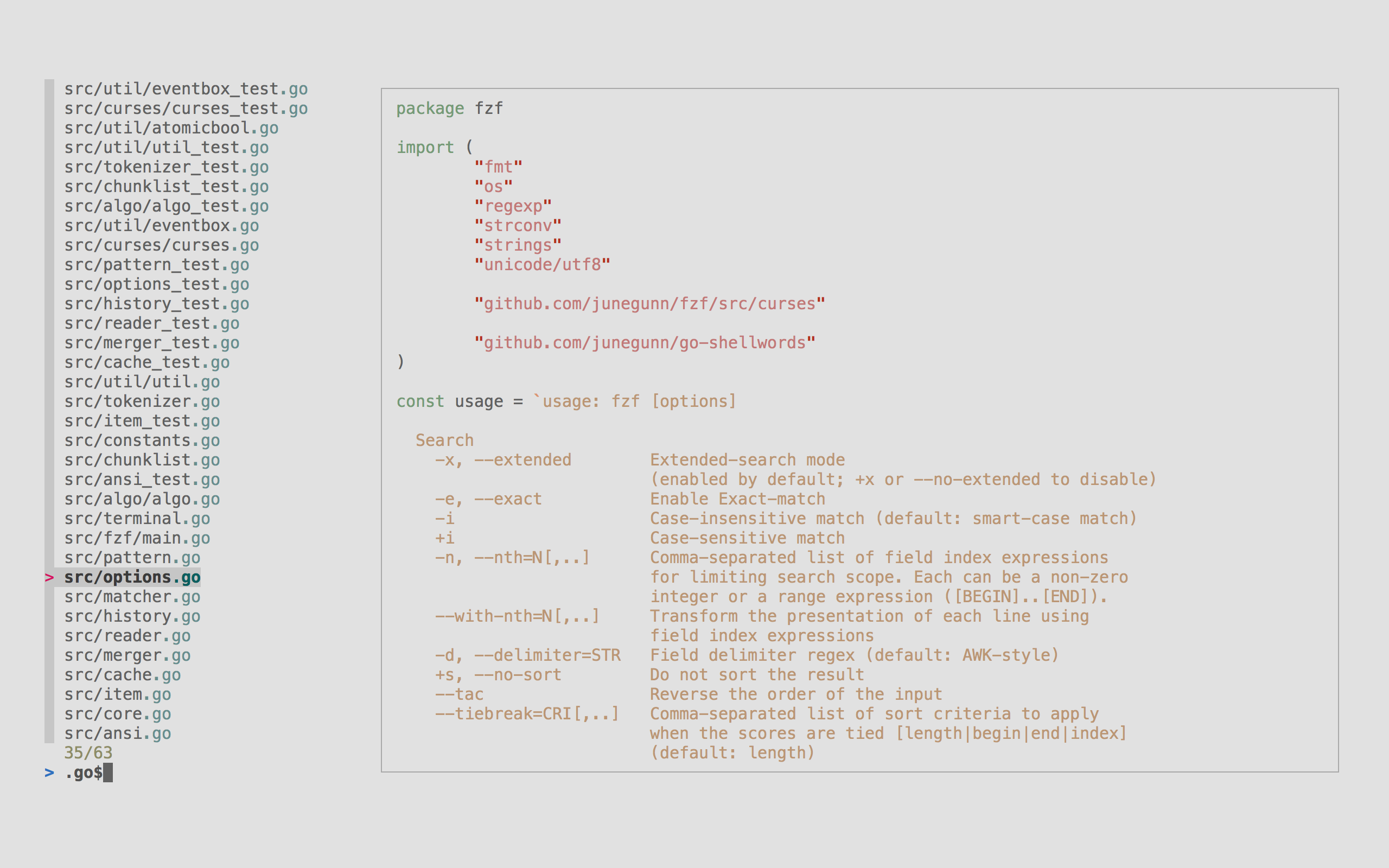
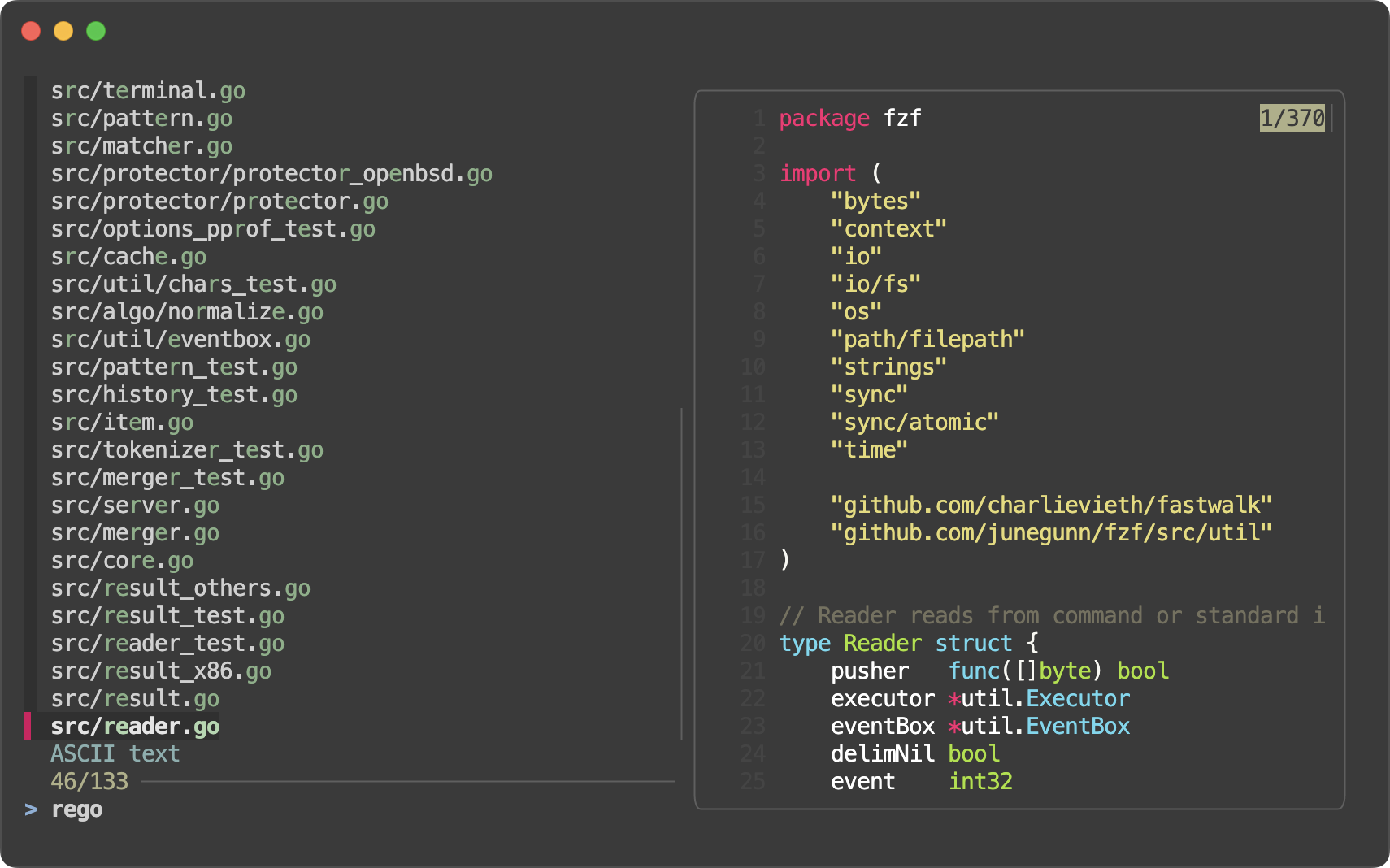
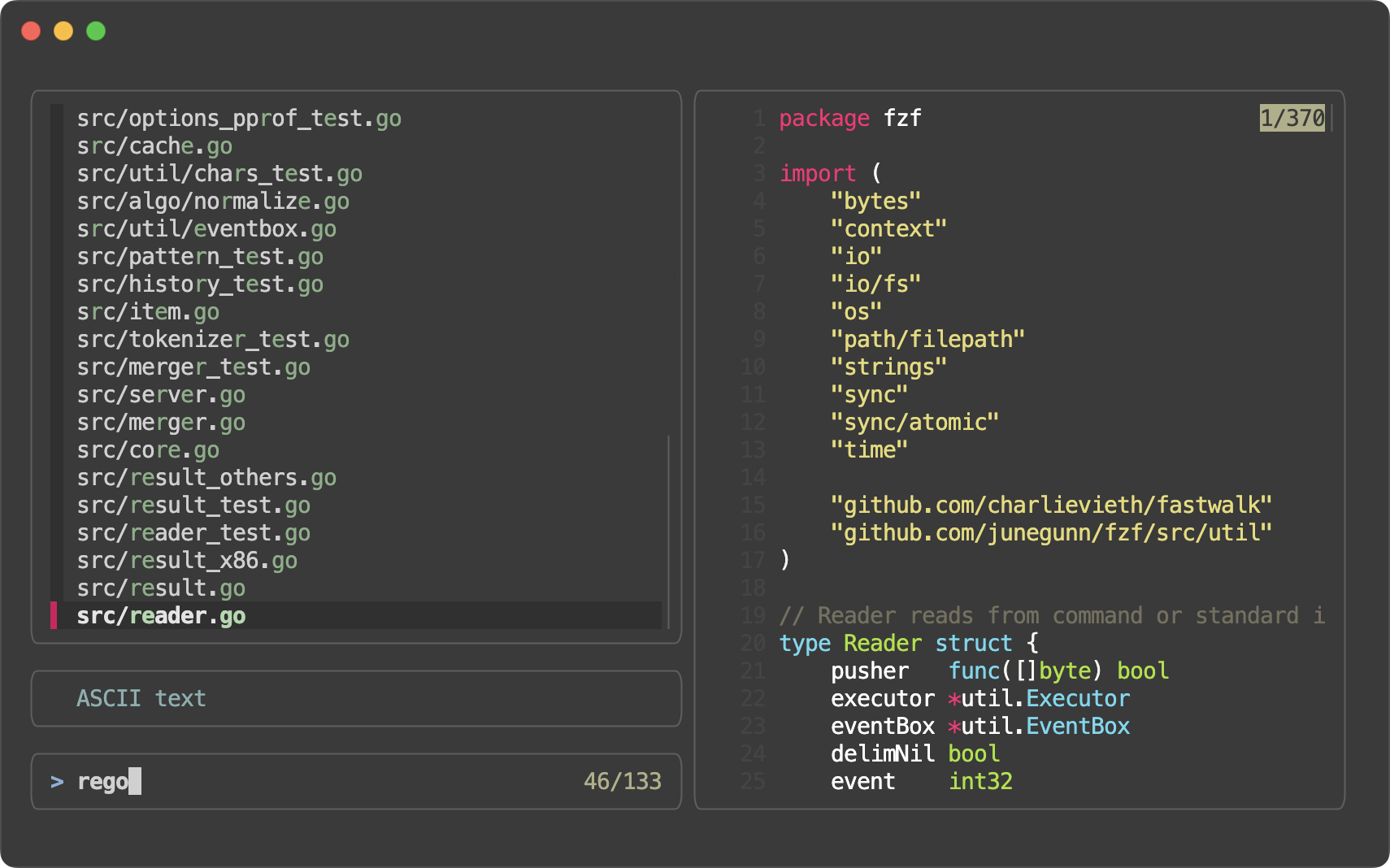
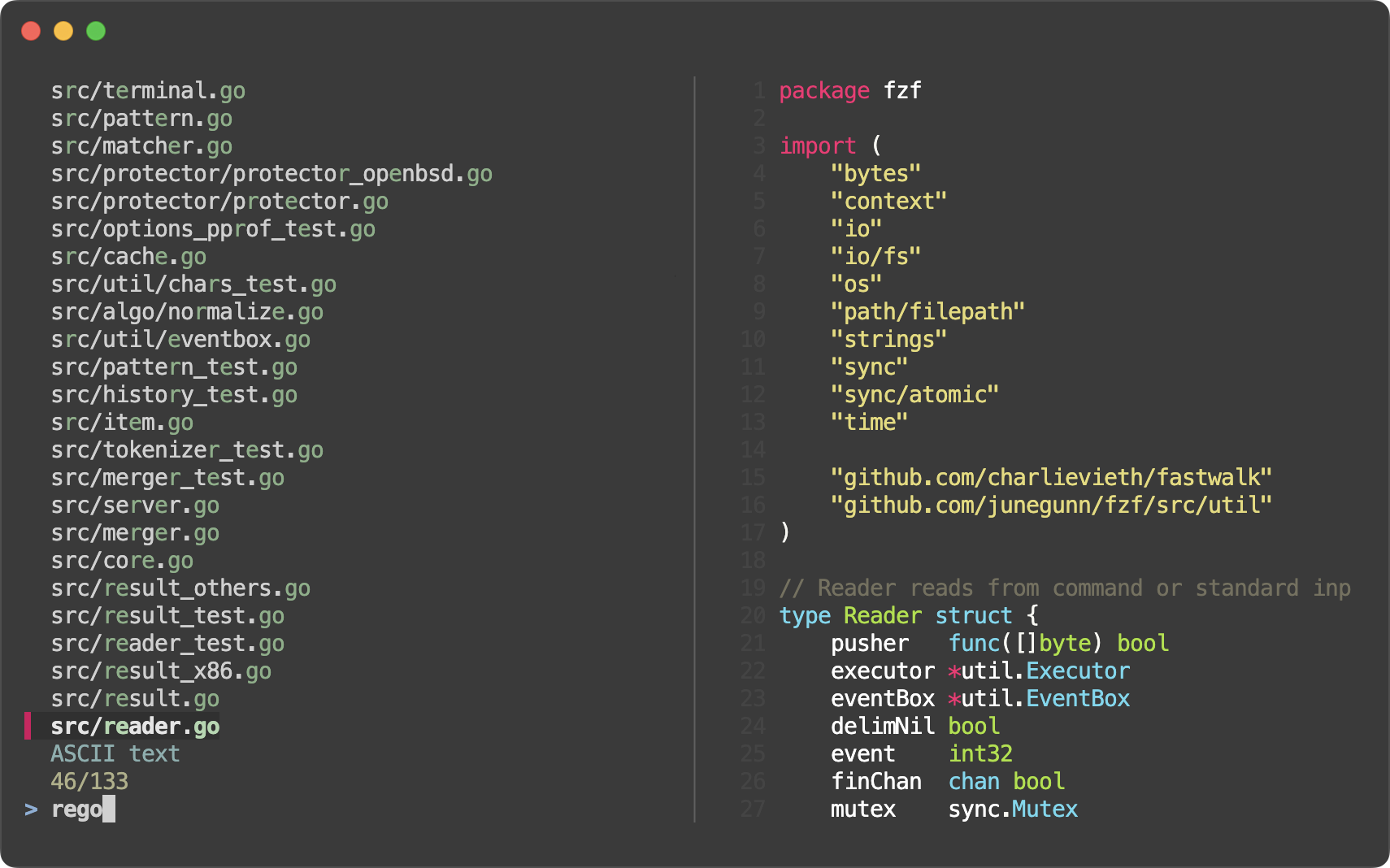
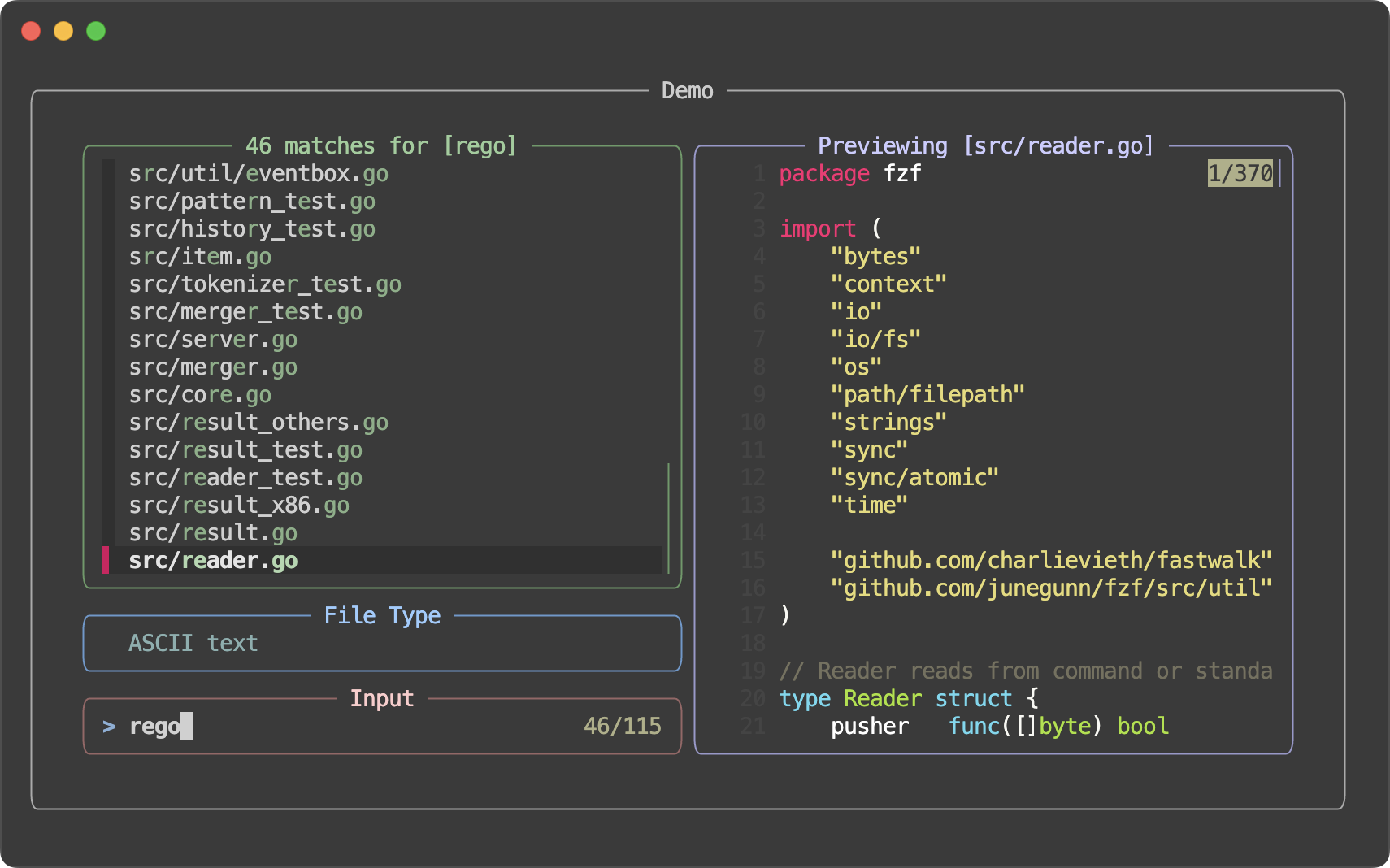
fzf is a general-purpose command-line fuzzy finder and an interactive terminal toolkit.
Whether you're selecting files, browsing command history, previewing data,
navigating complex datasets with fuzzy matching, or creating custom menus and
workflows, fzf provides the building blocks to turn shell scripts into rich
terminal applications.
Highlights
Portable // Distributed as a single binary for easy installation
Fast // Optimized to process millions of items in milliseconds
Programmable // Event-driven architecture for building custom terminal interfaces and workflows
Batteries-included // Comes with integrations for Bash, Zsh, Fish, Nushell, Vim, and Neovim
Add the following line to your shell configuration file.
bash
# Set up fzf key bindings and fuzzy completioneval"$(fzf --bash)"
zsh
# Set up fzf key bindings and fuzzy completionsource <(fzf --zsh)
fish
# Set up fzf key bindings
fzf --fish | source
Nushell -- Nushell does not support piping into source, so the install
script generates a file in the autoload directory. If you didn't use the
install script, you can manually set it up:
[!NOTE]
--bash, --zsh, --fish, and --nushell options are only available in
recent versions of fzf. If you have an older version of fzf, or want finer control, you can
source individual script files in the /shell directory. The
location of the files may vary depending on the package manager you use.
Please refer to the package documentation for more information.
(e.g. apt show fzf)
[!TIP]
You can disable CTRL-T, CTRL-R, or ALT-C bindings by setting the
corresponding *_COMMAND variable to an empty string when sourcing the
script. For example, to disable CTRL-R and ALT-C:
fzf#install() makes sure that you have the latest binary
junegunn/fzf.vim is a separate project
that provides a variety of useful commands
To learn more about the Vim integration, see README-VIM.md.
[!TIP]
If you use Neovim and prefer Lua-based plugins, check out
fzf-lua.
Upgrading fzf
fzf is being actively developed, and you might want to upgrade it once in a
while. Please follow the instruction below depending on the installation
method used.
CTRL-K / CTRL-J (or CTRL-P / CTRL-N) to move cursor up and down
Enter key to select the item, CTRL-C / CTRL-G / ESC to exit
On multi-select mode (-m), TAB and Shift-TAB to mark multiple items
Emacs style key bindings
Mouse: scroll, click, double-click; shift-click and shift-scroll on
multi-select mode
Display modes
fzf by default runs in fullscreen mode, but there are other display modes.
--height mode
With --height HEIGHT[%], fzf will start below the cursor with the given height.
fzf --height 40%
reverse layout and --border goes well with this option.
fzf --height 40% --layout reverse --border
By prepending ~ to the height, you're setting the maximum height.
# Will take as few lines as possible to display the listseq 3 | fzf --height ~100%
seq 3000 | fzf --height ~100%
Height value can be a negative number.
# Screen height - 3
fzf --height -3
--popup mode
With --popup option, fzf will start in a popup window
(requires tmux 3.3+ or Zellij 0.44+).
# --popup [center|top|bottom|left|right][,SIZE[%]][,SIZE[%][,border-native]]

fzf --popup center         # Center, 50% width and height
fzf --popup 80%            # Center, 80% width and height
fzf --popup 100%,50%       # Center, 100% width and 50% height
fzf --popup left,40%       # Left, 40% width
fzf --popup left,40%,90%   # Left, 40% width, 90% height
fzf --popup top,40%        # Top, 40% height
fzf --popup bottom,80%,40% # Bottom, 80% width, 40% height
--popup is silently ignored when you're not on tmux or Zellij.
[!NOTE]
If you're stuck with an old version of tmux that doesn't support popup,
or if you want to open fzf in a regular tmux pane, check out
fzf-tmux script.
[!TIP]
You can add these options to $FZF_DEFAULT_OPTS so that they're applied by
default. For example,
# Open in a popup if on tmux or Zellij, otherwise use --height modeexport FZF_DEFAULT_OPTS='--height 40% --popup bottom,40% --layout reverse --border top'
Search syntax
Unless otherwise specified, fzf starts in "extended-search mode" where you can
type in multiple search terms delimited by spaces. e.g. ^music .mp3$ sbtrkt !fire
Token
Match type
Description
sbtrkt
fuzzy-match
Items that match sbtrkt
'wild
exact-match (quoted)
Items that include wild
'wild'
exact-boundary-match (quoted both ends)
Items that include wild at word boundaries
^music
prefix-exact-match
Items that start with music
.mp3$
suffix-exact-match
Items that end with .mp3
!fire
inverse-exact-match
Items that do not include fire
!^music
inverse-prefix-exact-match
Items that do not start with music
!.mp3$
inverse-suffix-exact-match
Items that do not end with .mp3
If you don't prefer fuzzy matching and do not wish to "quote" every word,
start fzf with -e or --exact option. Note that when --exact is set,
'-prefix "unquotes" the term.
A single bar character term acts as an OR operator. For example, the following
query matches entries that start with core and end with either go, rb,
or py.
^core go$ | rb$ | py$
Environment variables
FZF_DEFAULT_COMMAND
Default command to use when input is tty
e.g. export FZF_DEFAULT_COMMAND='fd --type f'
FZF_DEFAULT_OPTS
Default options
e.g. export FZF_DEFAULT_OPTS="--layout=reverse --inline-info"
FZF_DEFAULT_OPTS_FILE
If you prefer to manage default options in a file, set this variable to
point to the location of the file
e.g. export FZF_DEFAULT_OPTS_FILE=~/.fzfrc
[!WARNING]
FZF_DEFAULT_COMMAND is not used by shell integration due to the
slight difference in requirements.
CTRL-T runs $FZF_CTRL_T_COMMAND to get a list of files and directories
ALT-C runs $FZF_ALT_C_COMMAND to get a list of directories
vim ~/**<tab> runs fzf_compgen_path() with the prefix (~/) as the first argument
cd foo**<tab> runs fzf_compgen_dir() with the prefix (foo) as the first argument
The available options are described later in this document.
Customizing the look
The user interface of fzf is fully customizable with a large number of
configuration options. For a quick setup, you can start with one of the style
presets -- default, full, or minimal -- using the --style option.
fzf --style full \
--preview 'fzf-preview.sh {}' --bind'focus:transform-header:file --brief {}'
CTRL-T - Paste the selected files and directories onto the command-line
The list is generated using --walker file,dir,follow,hidden option
You can override the behavior by setting FZF_CTRL_T_COMMAND to a custom command that generates the desired list
Or you can set --walker* options in FZF_CTRL_T_OPTS
Set FZF_CTRL_T_OPTS to pass additional options to fzf
# Preview file content using bat (https://github.com/sharkdp/bat)export FZF_CTRL_T_OPTS="
--walker-skip .git,node_modules,target
--preview 'bat -n --color=always {}'
--bind 'ctrl-/:change-preview-window(down|hidden|)'"
Can be disabled by setting FZF_CTRL_T_COMMAND to an empty string when
sourcing the script
CTRL-R - Paste the selected command from history onto the command-line.
Select multiple commands with TAB.
If you want to see the commands in chronological order, press CTRL-R
again which toggles sorting by relevance
Press ALT-R to toggle "raw" mode where you can see the surrounding items
of a match. In this mode, you can press CTRL-N and CTRL-P to move
between the matching items only.
Press CTRL-/ or ALT-/ to toggle line wrapping
Press SHIFT-DELETE to delete the selected commands (bash and fish)
Fish shell only:
Press ALT-ENTER to reformat and insert the selected commands
Press ALT-T to cycle through command prefix (timestamp, date/time, none)
Set FZF_CTRL_R_OPTS to pass additional options to fzf
# CTRL-Y to copy the command into clipboard using pbcopyexport FZF_CTRL_R_OPTS="
--bind 'ctrl-y:execute-silent(echo -n {2..} | pbcopy)+abort'
--color header:italic
--header 'Press CTRL-Y to copy command into clipboard'"
# Fish shell: Set date/time as default prefix
set -gx FZF_CTRL_R_OPTS "--with-nth 1,3.. --bind 'alt-t:change-with-nth(2..|3..|1,3..)'"

# Or display no prefix by default
set -gx FZF_CTRL_R_OPTS "--with-nth 3.. --bind 'alt-t:change-with-nth(2..|1,3..|3..)'"
Can be disabled by setting FZF_CTRL_R_COMMAND to an empty string when
sourcing the script
Custom override via a non-empty FZF_CTRL_R_COMMAND is not yet supported and will emit a warning
ALT-C - cd into the selected directory
The list is generated using --walker dir,follow,hidden option
Set FZF_ALT_C_COMMAND to override the default command
Or you can set --walker-* options in FZF_ALT_C_OPTS
Set FZF_ALT_C_OPTS to pass additional options to fzf
# Print tree structure in the preview windowexport FZF_ALT_C_OPTS="
--walker-skip .git,node_modules,target
--preview 'tree -C {}'"
Can be disabled by setting FZF_ALT_C_COMMAND to an empty string when
sourcing the script
Display modes for these bindings can be separately configured via
FZF_{CTRL_T,CTRL_R,ALT_C}_OPTS or globally via FZF_DEFAULT_OPTS.
(e.g. FZF_CTRL_R_OPTS='--popup bottom,60% --height 60% --border top')
Shell integration also provides fuzzy completion for bash, zsh, fish, and Nushell.
Files and directories
Fuzzy completion for files and directories can be triggered if the word before
the cursor ends with the trigger sequence, which is by default **.
COMMAND [DIRECTORY/][FUZZY_PATTERN]**<TAB>
# Files under the current directory# - You can select multiple items with TAB key
vim **<TAB>
# Files under parent directory
vim ../**<TAB>
# Files under parent directory that match `fzf`
vim ../fzf**<TAB>
# Files under your home directory
vim ~/**<TAB>
# Directories under current directory (single-selection)cd **<TAB>
# Directories under ~/github that match `fzf`cd ~/github/fzf**<TAB>
Process IDs
Fuzzy completion for PIDs is provided for kill command.
# Can select multiple processes with <TAB> or <Shift-TAB> keyskill -9 **<TAB>
Host names
For ssh command, fuzzy completion for hostnames is provided. The names are
extracted from /etc/hosts and ~/.ssh/config.
# Use ~~ as the trigger sequence instead of the default **export FZF_COMPLETION_TRIGGER='~~'# Options to fzf commandexport FZF_COMPLETION_OPTS='--border --info=inline'# Options for path completion (e.g. vim **<TAB>)export FZF_COMPLETION_PATH_OPTS='--walker file,dir,follow,hidden'# Options for directory completion (e.g. cd **<TAB>)export FZF_COMPLETION_DIR_OPTS='--walker dir,follow'# Advanced customization of fzf options via _fzf_comprun function# - The first argument to the function is the name of the command.# - You should make sure to pass the rest of the arguments ($@) to fzf._fzf_comprun() {
localcommand=$1shiftcase"$command"incd) fzf --preview 'tree -C {} | head -200'"$@" ;;
export|unset) fzf --preview "eval 'echo \$'{}""$@" ;;
ssh) fzf --preview 'dig {}'"$@" ;;
*) fzf --preview 'bat -n --color=always {}'"$@" ;;
esac
}
Customizing completion source for paths and directories
# Use fd (https://github.com/sharkdp/fd) for listing path candidates.# - The first argument to the function ($1) is the base path to start traversal# - See the source code (completion.{bash,zsh}) for the details._fzf_compgen_path() {
fd --hidden --follow --exclude ".git" . "$1"
}
# Use fd to generate the list for directory completion_fzf_compgen_dir() {
fd --type d --hidden --follow --exclude ".git" . "$1"
}
Supported commands (bash)
On bash, fuzzy completion is enabled only for a predefined set of commands
(complete | grep _fzf to see the list). But you can enable it for other
commands as well by using _fzf_setup_completion helper function.
# usage: _fzf_setup_completion path|dir|var|alias|host COMMANDS...
_fzf_setup_completion path ag git kubectl
_fzf_setup_completion dir tree
Custom fuzzy completion
(Custom completion API is experimental and subject to change)
For a command named "COMMAND", define _fzf_complete_COMMAND function using
_fzf_complete helper.
# Custom fuzzy completion for "doge" command# e.g. doge **<TAB>_fzf_complete_doge() {
_fzf_complete --multi --reverse --prompt="doge> " -- "$@" < <(
echo very
echo wow
echo such
echo doge
)
}
The arguments before -- are the options to fzf.
After --, simply pass the original completion arguments unchanged ("$@").
Then, write a set of commands that generates the completion candidates and
feed its output to the function using process substitution (< <(...)).
zsh will automatically pick up the function using the naming convention but in
bash you have to manually associate the function with the command using the
complete command.
Fuzzy completion for fish differs from bash and zsh in that:
It doesn't require a trigger sequence like **. Instead, if activates
on Shift-TAB (replacing the native pager search mode), while TAB preserves
fish's native completion behavior.
It relies on fish's native completion system to populate the candidate list,
rather than performing a recursive file system traversal. For recursive
searching, use the CTRL-T binding instead.
If the current command line token is a wildcard pattern, it performs search on
the wildcard expansion path list (instead of the native behavior of inserting
all the results in command line). Because the shell is used for the expansion,
there is a limit in the number of results.
The only supported configuration variables are FZF_COMPLETION_OPTS and
FZF_EXPANSION_OPS.
The function that is used by custom completion functions is named
fzf_complete, which only accepts fzf options as arguments, and can be also
called without any redirected input, to just modify fzf options while
presenting the native completion results. For compatibility with other shells,
a function named _fzf_complete is provided, that can accept -- $argv in
its command line arguments, after fzf options.
For commands that are not covered by fish completions, it is better to create
regular fish completion functions (which will work for both TAB and
Shift-TAB), and create fzf completion functions only when needing to modify
fzf options for a specific command or want different results for Shift-TAB:
# Customize git completion
function _fzf_complete_git
  # Show header text with active branch for all git completions
  set -lx -- FZF_COMPLETION_OPTS --header="'"(git branch --show-current 2>/dev/null)"'"

  # No other changes when less than 3 arguments, or when completing options
  if not set -q argv[3]; or string match -q -- '-*' $argv[-1]
    fzf_complete
    return
  end

  # Check subcommand
  switch $argv[2]
    case checkout diff log show
      # Set preview and display all branches and commits for subcommands: checkout, diff, log, show
      begin
        git branch --all --format='%(refname:short)'
        git log --all --oneline --color=always
      end | fzf_complete --no-multi --ansi --accept-nth=1 --query=$argv[-1] --preview='git show --color=always {1}'

    case add rm mv
      # Only set preview for subcommands: add, rm, mv
      # Special characters in fish completion lists are escaped, so the r flag must be used.
      fzf_complete --preview="git diff --color=always {r1}"

    case '*'
      # No changes for other subcommands
      fzf_complete
  end
end
Similar to bash and zsh, the output of fzf can be processed before inserted in
command line, by defining a function named _fzf_complete_COMMAND_post or
_fzf_post_complete_COMMAND:
function _fzf_complete_foo
  ls -sh --zero --color=always | fzf_complete --read0 --print0 --ansi --no-multi-line --header-lines=1
end

function _fzf_post_complete_foo
  while read -lz result
    string escape -n -- $result | string trim -l -c '\ ' | string split -m 1 -f 2 ' '
  end
end
Fuzzy completion for Nushell
Fuzzy completion in Nushell works via the
external completer
mechanism. There are some differences compared to bash and zsh:
On Nushell >= 0.103.0, the external completer is no longer called for
built-in commands (e.g. cd, ls). Fuzzy completion with **<TAB> only
works for external commands.
Custom completers can be defined via the $env.FZF_COMPLETERS record in
your config.nu. Each entry is a closure that receives the prefix and the
command spans, and returns either a list of candidate strings or a record
{ candidates: [...], opts: [...] } for custom fzf options:
The following environment variables are supported:
FZF_COMPLETION_TRIGGER, FZF_COMPLETION_OPTS,
FZF_COMPLETION_PATH_OPTS, FZF_COMPLETION_DIR_OPTS,
FZF_COMPLETION_DIR_COMMANDS.
Since fzf is a general-purpose text filter, its algorithm was designed to
"generally" work well with any kind of input. However, admittedly, there is no
true one-size-fits-all solution, and you may want to tweak the algorithm and
some of the settings depending on the type of the input. To make this process
easier, fzf provides a set of "scheme"s for some common input types.
Scheme
Description
--scheme=default
Generic scheme designed to work well with any kind of input
--scheme=path
Suitable for file paths
--scheme=history
Suitable for command history or any input where chronological ordering is important
(See fzf --man for the details)
Performance
fzf is fast. Performance should not be a problem in most use cases. However,
you might want to be aware of the options that can affect performance.
--ansi tells fzf to extract and parse ANSI color codes in the input, and it
makes the initial scanning slower. So it's not recommended that you add it
to your $FZF_DEFAULT_OPTS.
--nth makes fzf slower because it has to tokenize each line.
A plain string --delimiter should be preferred over a regular expression
delimiter.
--with-nth makes fzf slower as fzf has to tokenize and reassemble each
line.
Executing external programs
You can set up key bindings for starting external processes without leaving
fzf (execute, execute-silent).
# Press F1 to open the file with less without leaving fzf# Press CTRL-Y to copy the line to clipboard and aborts fzf (requires pbcopy)
fzf --bind'f1:execute(less -f {}),ctrl-y:execute-silent(echo {} | pbcopy)+abort'
See KEY/EVENT BINDINGS section of the man page for details.
Turning into a different process
become(...) is similar to execute(...)/execute-silent(...) described
above, but instead of executing the command and coming back to fzf on
complete, it turns fzf into a new process for the command.
fzf --bind'enter:become(vim {})'
Compared to the seemingly equivalent command substitution vim "$(fzf)", this
approach has several advantages:
Vim will not open an empty file when you terminate fzf with
CTRL-C
Vim will not open an empty file when you press ENTER on an empty
result
Can handle multiple selections even when they have whitespaces
fzf --multi --bind'enter:become(vim {+})'
To be fair, running fzf --print0 | xargs -0 -o vim instead of vim "$(fzf)"
resolves all of the issues mentioned. Nonetheless, become(...) still offers
additional benefits in different scenarios.
You can set up multiple bindings to handle the result in different ways
without any wrapping script
The following example uses fzf as the selector interface for ripgrep. We bound
reload action to change event, so every time you type on fzf, the ripgrep
process will restart with the updated query string denoted by the placeholder
expression {q}. Also, note that we used --disabled option so that fzf
doesn't perform any secondary filtering.
If ripgrep doesn't find any matches, it will exit with a non-zero exit status,
and fzf will warn you about it. To suppress the warning message, we added
|| true to the command, so that it always exits with 0.
When the --preview option is set, fzf automatically starts an external process
with the current line as the argument and shows the result in the split window.
Your $SHELL is used to execute the command with $SHELL -c COMMAND.
The window can be scrolled using the mouse or custom key bindings.
# {} is replaced with the single-quoted string of the focused line
fzf --preview 'cat {}'
Preview window supports ANSI colors, so you can use any program that
syntax-highlights the content of a file, such as
Bat or
Highlight:
You can customize the size, position, and border of the preview window using
--preview-window option, and the foreground and background color of it with
--color option. For example,
[!WARNING]
Since fzf is a general-purpose text filter rather than a file finder, it is
not a good idea to add --preview option to your $FZF_DEFAULT_OPTS.
# *********************# ** DO NOT DO THIS! **# *********************export FZF_DEFAULT_OPTS='--preview "bat --style=numbers --color=always --line-range :500 {}"'# bat doesn't work with any input other than the list of files
ps -ef | fzf
seq 100 | fzf
history | fzf
Previewing an image
fzf can display images in the preview window using one of the following protocols:
# Feed the output of fd into fzf
fd --type f --strip-cwd-prefix | fzf
# Setting fd as the default source for fzfexport FZF_DEFAULT_COMMAND='fd --type f --strip-cwd-prefix'# Now fzf (w/o pipe) will use the fd command to generate the list
fzf
# To apply the command to CTRL-T as wellexport FZF_CTRL_T_COMMAND="$FZF_DEFAULT_COMMAND"
If you want the command to follow symbolic links and don't want it to exclude
hidden files, use the following command:
export FZF_DEFAULT_COMMAND='fd --type f --strip-cwd-prefix --hidden --follow --exclude .git'
Fish shell
CTRL-T key binding of fish, unlike those of bash and zsh, will use the last
token on the command-line as the root directory for the recursive search. For
instance, hitting CTRL-T at the end of the following command-line
ls /var/
will list all files and directories under /var/.
When using a custom FZF_CTRL_T_COMMAND, use the unexpanded $dir variable to
make use of this feature. $dir defaults to . when the last token is not a
valid directory. Example:
set -g FZF_CTRL_T_COMMAND "command find -L \$dir -type f 2> /dev/null | sed '1d; s#^\./##'"